
How to Create a User Account in Taxlink
Add team members to your Taxlink account and choose their role and the companies they can access. The yearly plan includes you plus up to 5 more users.
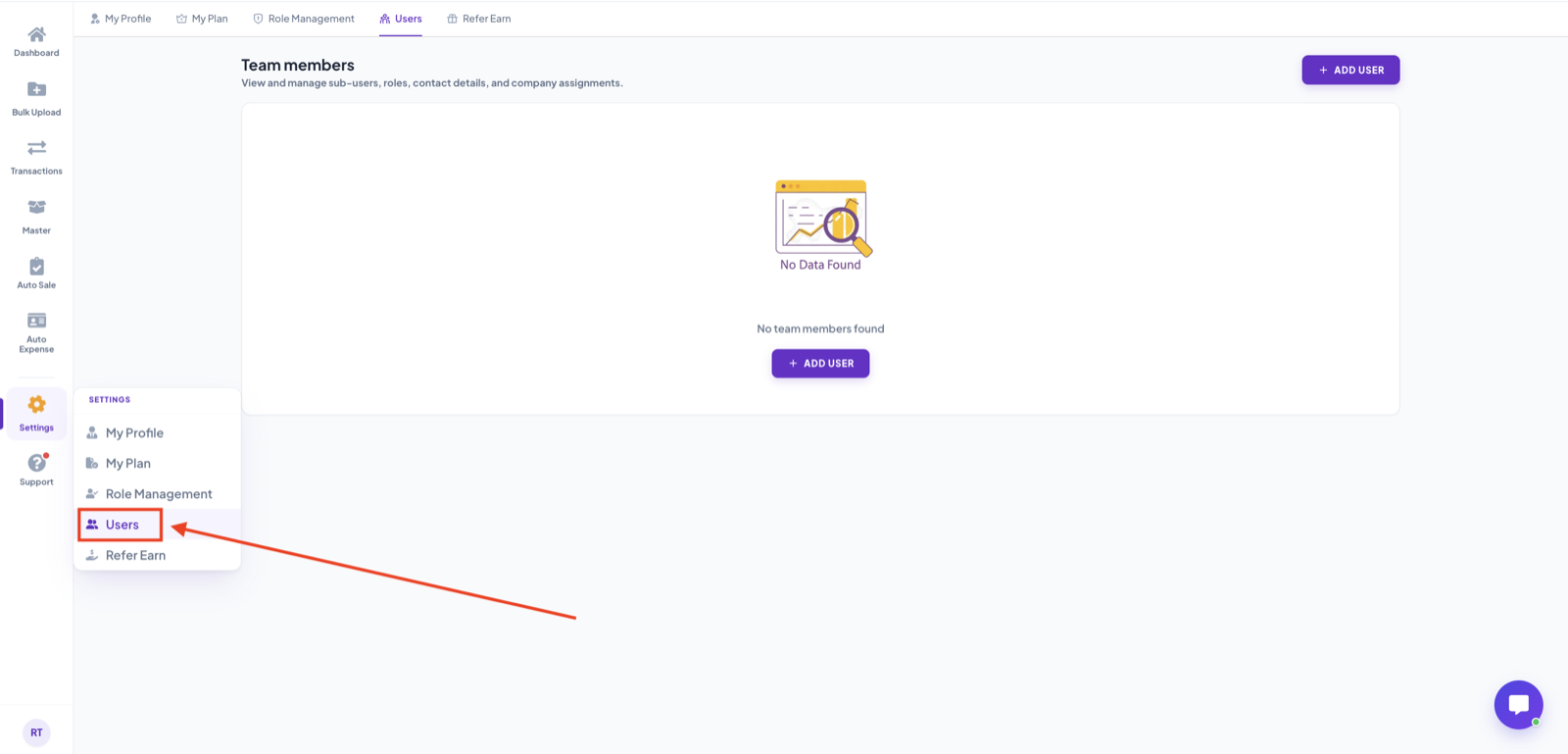
Step 1: Go to Settings → Users
Open the user list in Settings.
- Log in with your admin account
- Click "Settings" in the left sidebar
- Open the "Users" tab
- You will see the existing users and their roles
Click the screenshot to open it full size. Step 2: Click “+ Add User”
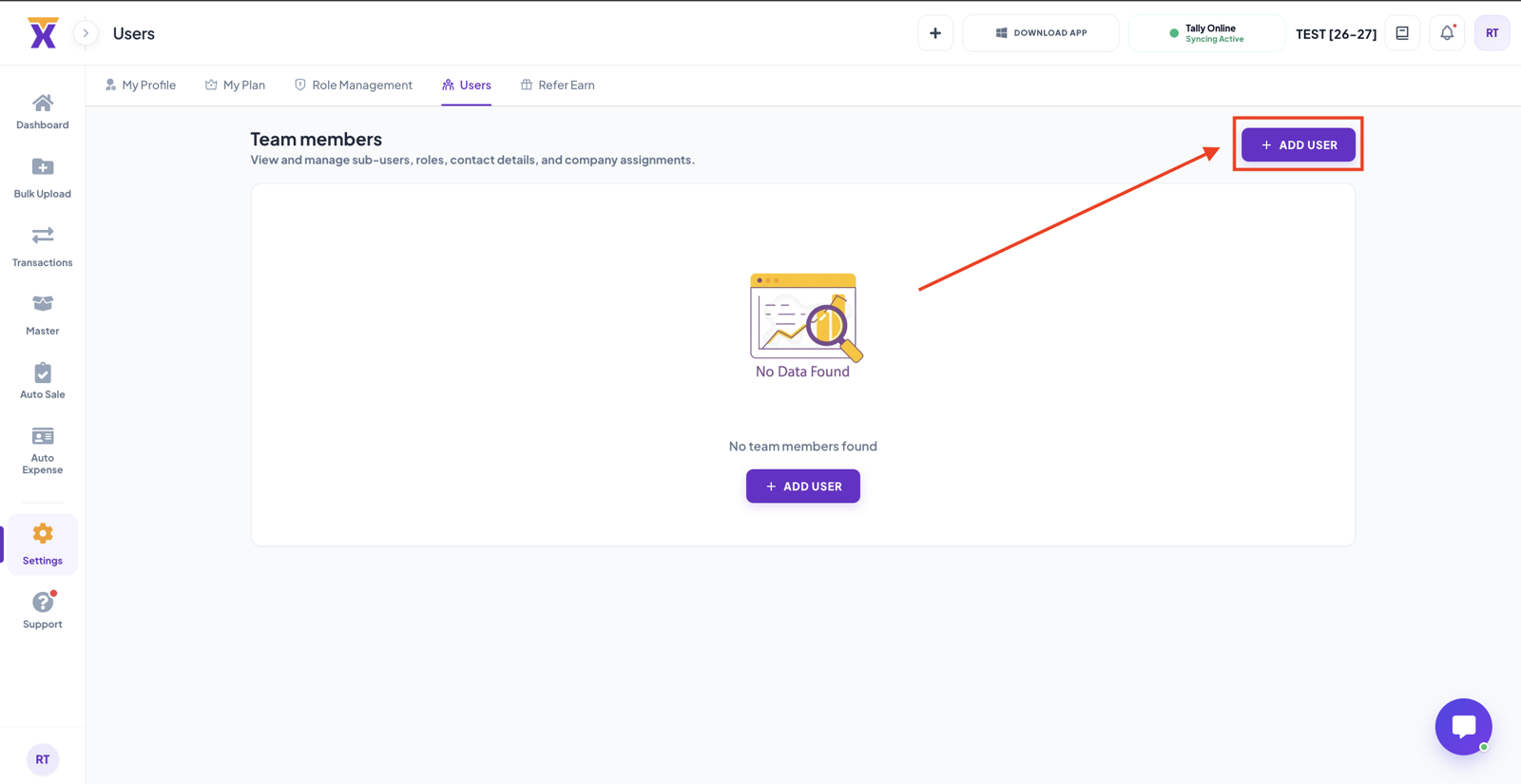
Click the Add User button at the top right of the user list.
- Click "+ Add User"
- The Register Sub User form opens
Click the screenshot to open it full size. Step 3: Fill in the required details
Enter the user's login and contact details.
- First name and last name
- Email address (used to log in)
- 10-digit mobile number
- A password for the user
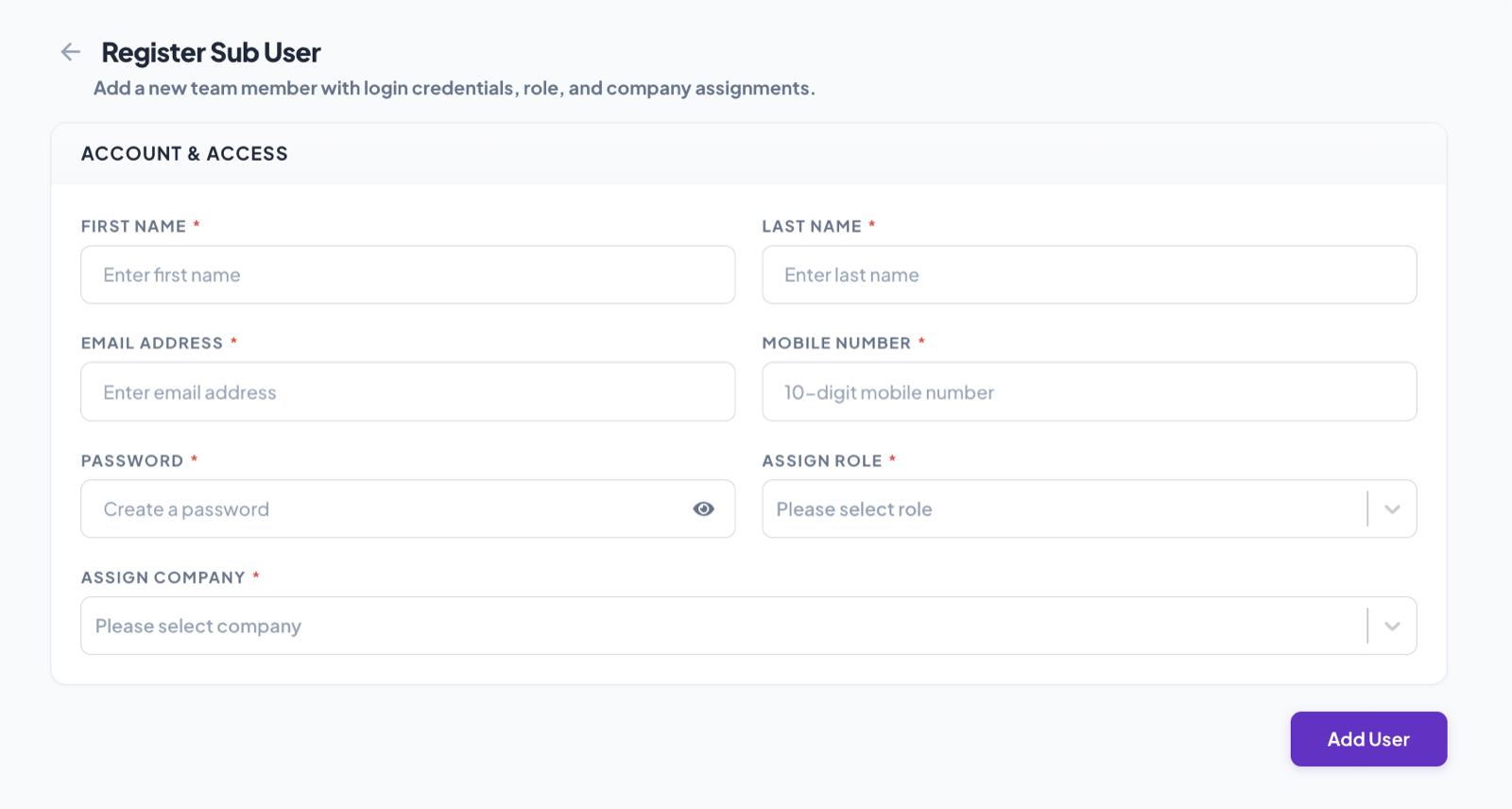
Click the screenshot to open it full size. Double-check the email address. It is the user's login.
Step 4: Assign a role
Choose the role that matches the person's work.
- Open the "Assign Role" dropdown
- Select one of the roles created in Role Management
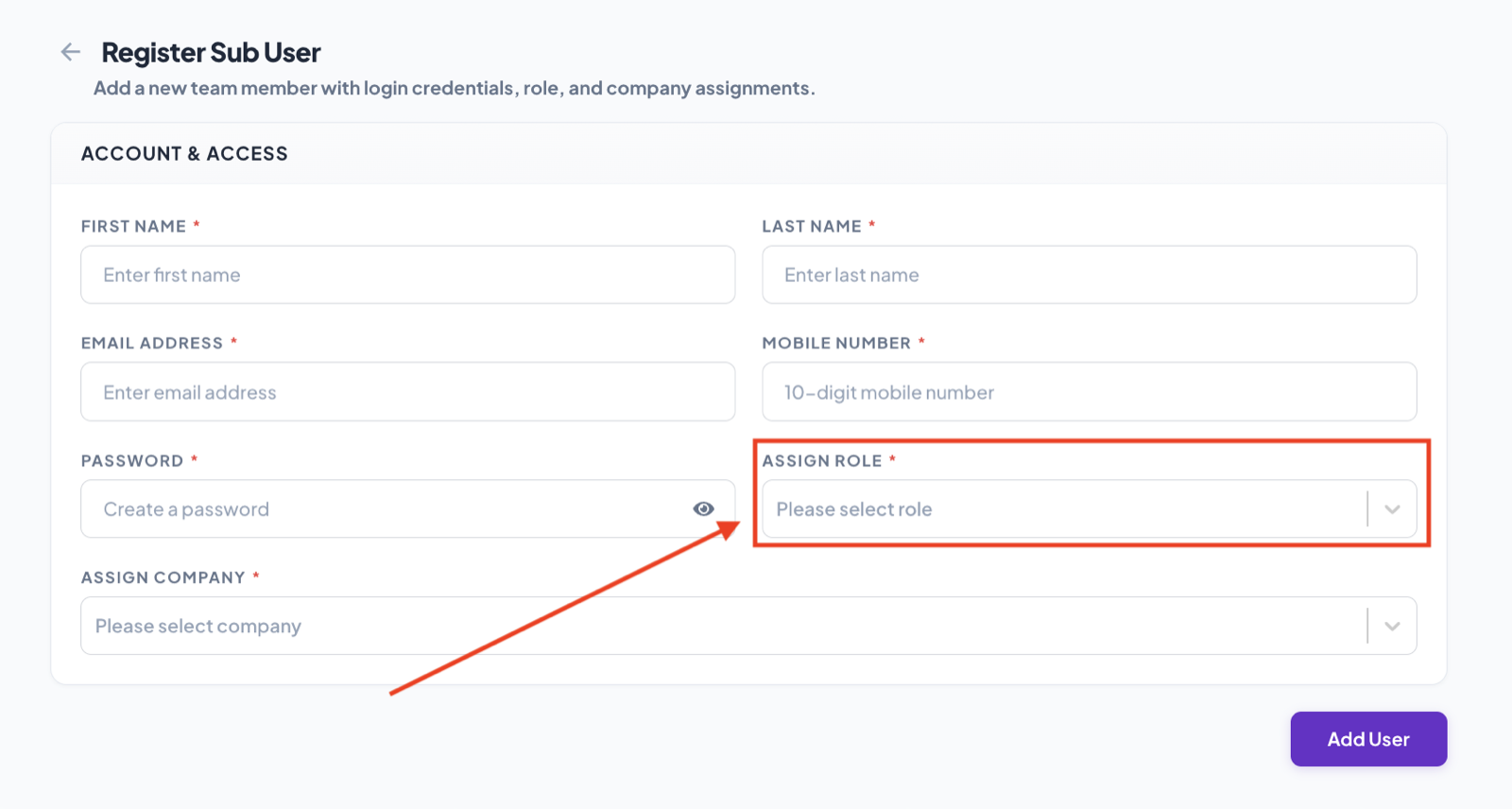
Click the screenshot to open it full size. Start with minimal permissions; you can change roles later.
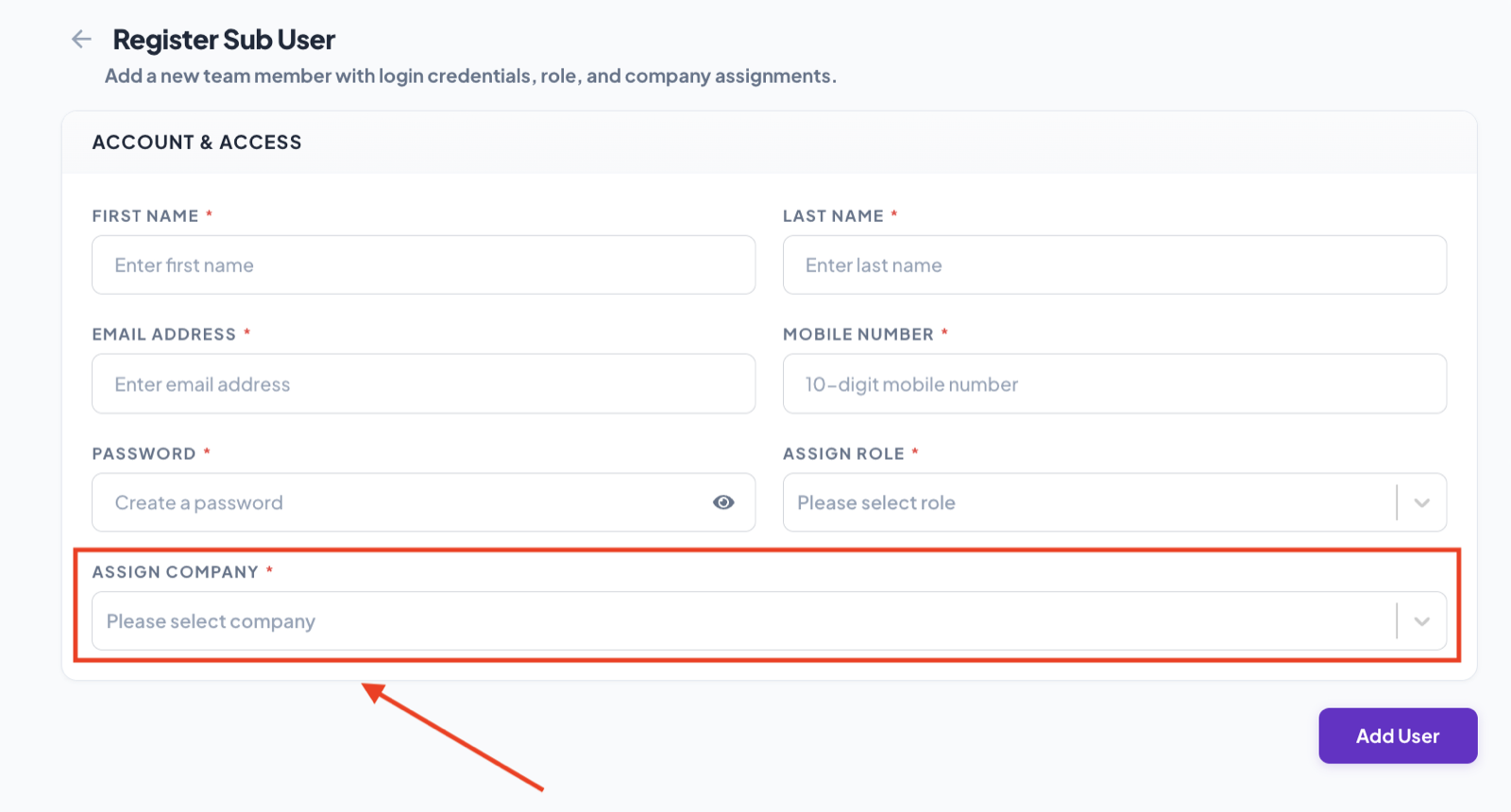
Step 5: Assign companies
Choose which companies the user can access.
- Open the "Assign Company" dropdown
- Select one or more companies
- Give access only to the companies they work on
Click the screenshot to open it full size. Step 6: Click “Add User”
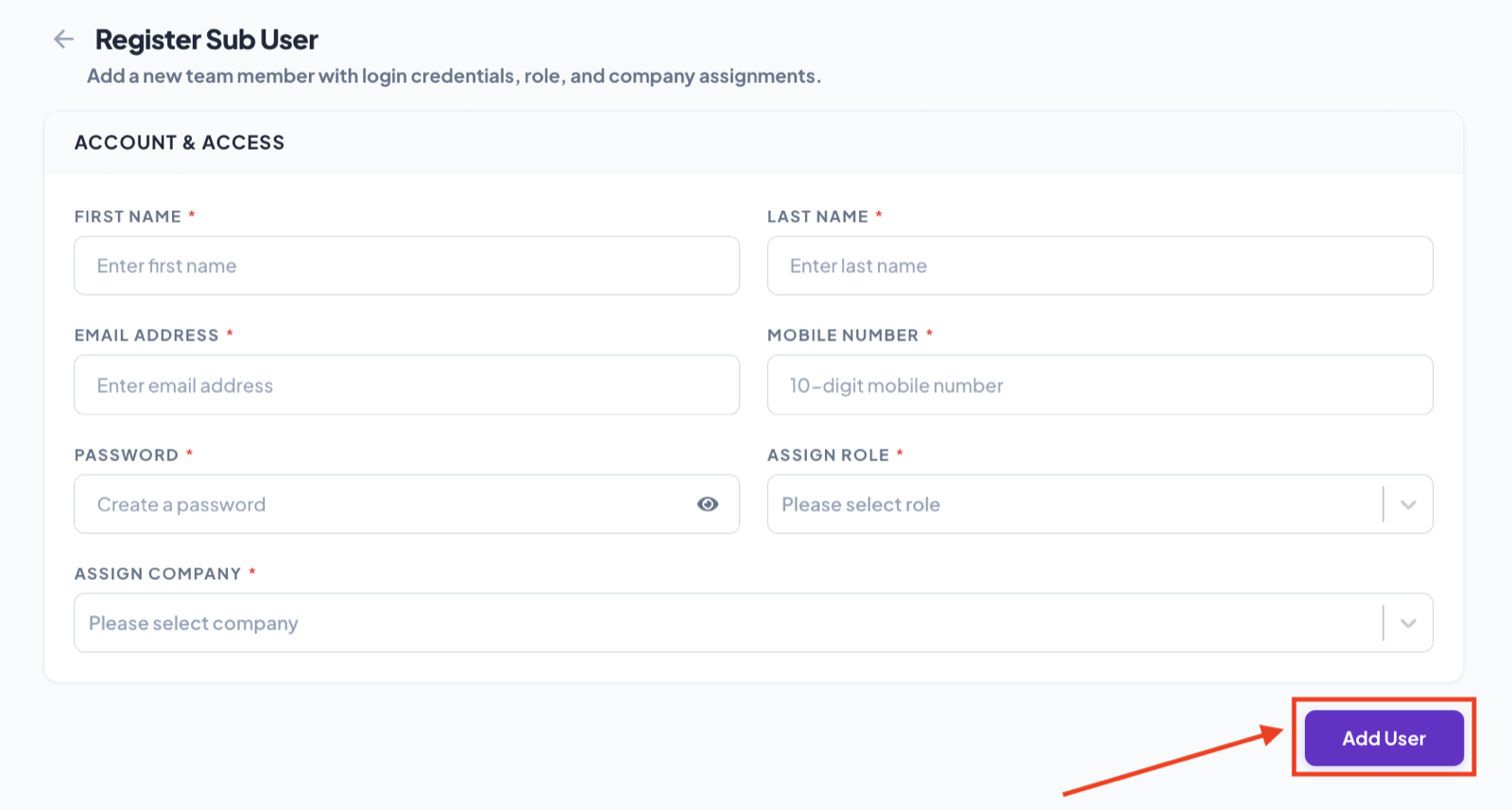
Review the details and create the account.
- Check the email address, role and companies
- Click "Add User"
- Share the login email and password with the new user
Click the screenshot to open it full size.
Tips
Start with minimal permissions
Add more access only when it's needed.
Review access regularly
Remove users and companies people no longer need.
Keep details updated
Keep users' contact details current.
Still stuck?
Email support@taxlink.in or call +91 84848 48833 (Monday to Saturday, 9 AM – 6 PM IST).