
How to View and Download Reports
Sign in to Taxlink, open the Module tab in the sidebar, pick any report, then use the download buttons to save it in Excel, PDF, or Doc format.
Before you start
- A Taxlink account with access to the reports you need. If a report is missing, ask your administrator to check your role.
Step 1: Sign in
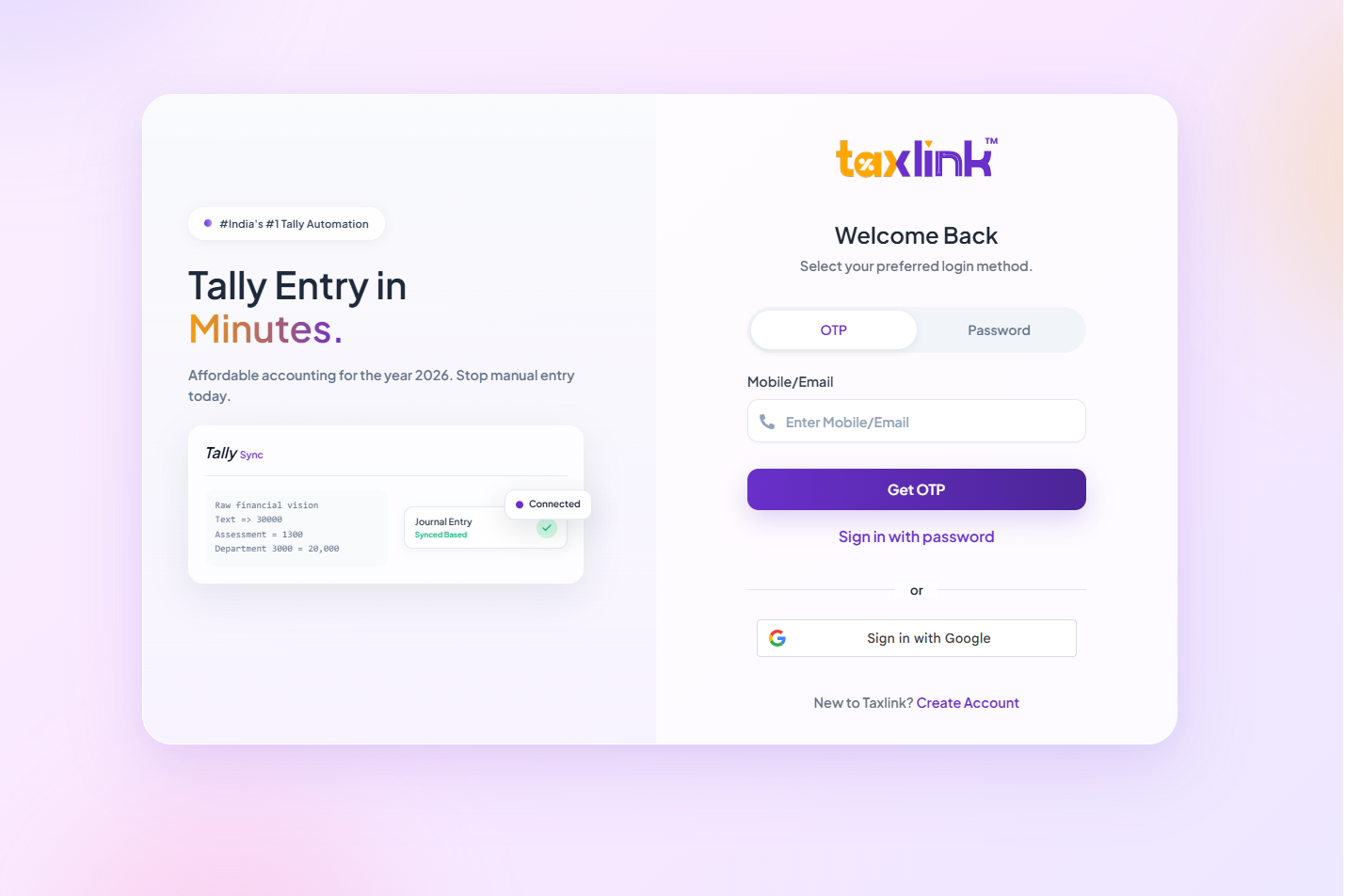
Log in to your Taxlink account to open the dashboard and sidebar.
- Go to the Taxlink login page
- Enter your registered email address and password
- Click "Sign In" to open your dashboard
Click the screenshot to open it full size. Step 2: Open Module in the sidebar
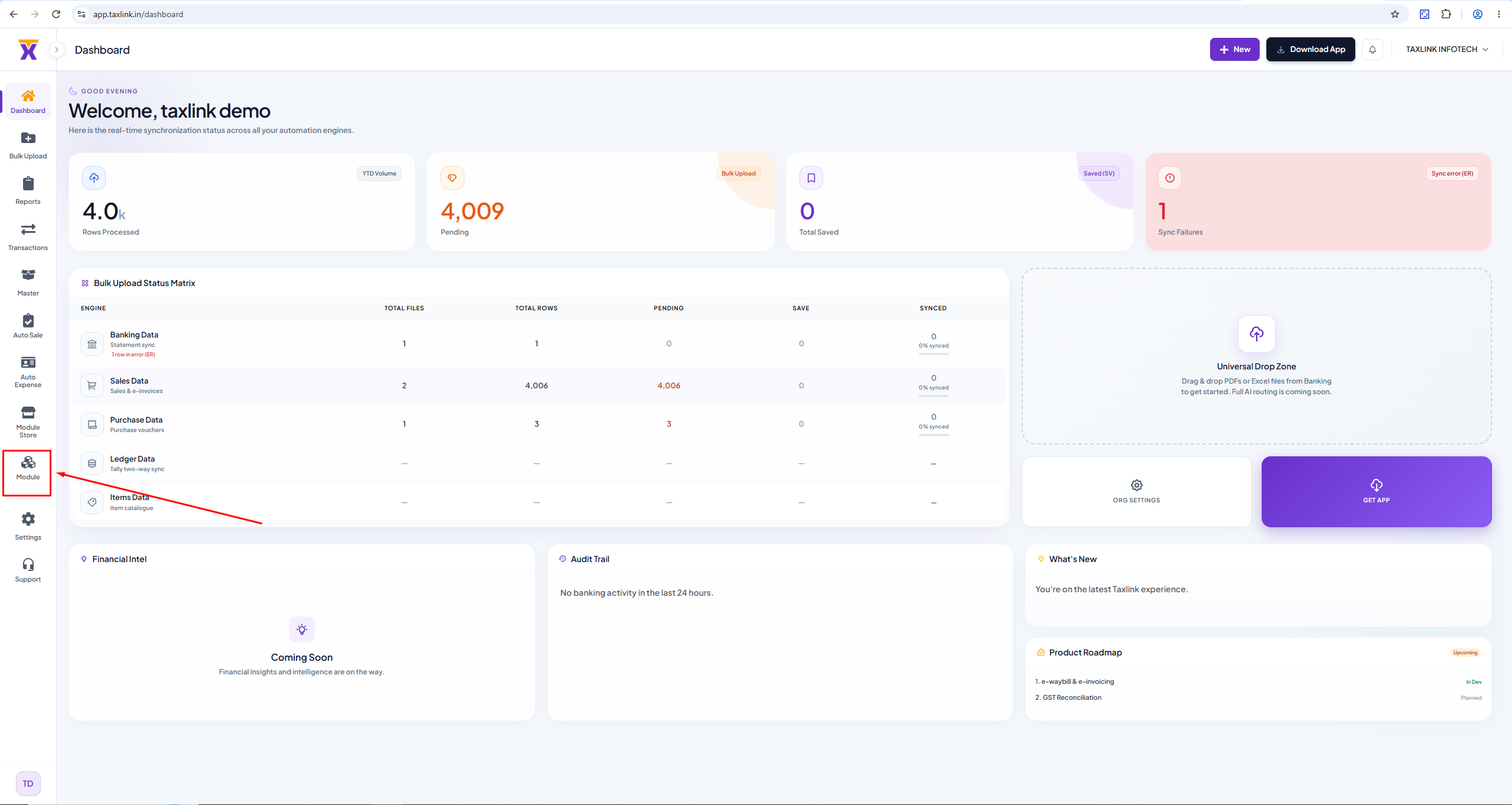
Use the Module tab in the left sidebar to see all available reports.
- Click "Module" in the left sidebar
- The report list for your company opens
- Reports are grouped by category (for example GST, ledgers, or stock)
Click the screenshot to open it full size. Step 3: Select a report
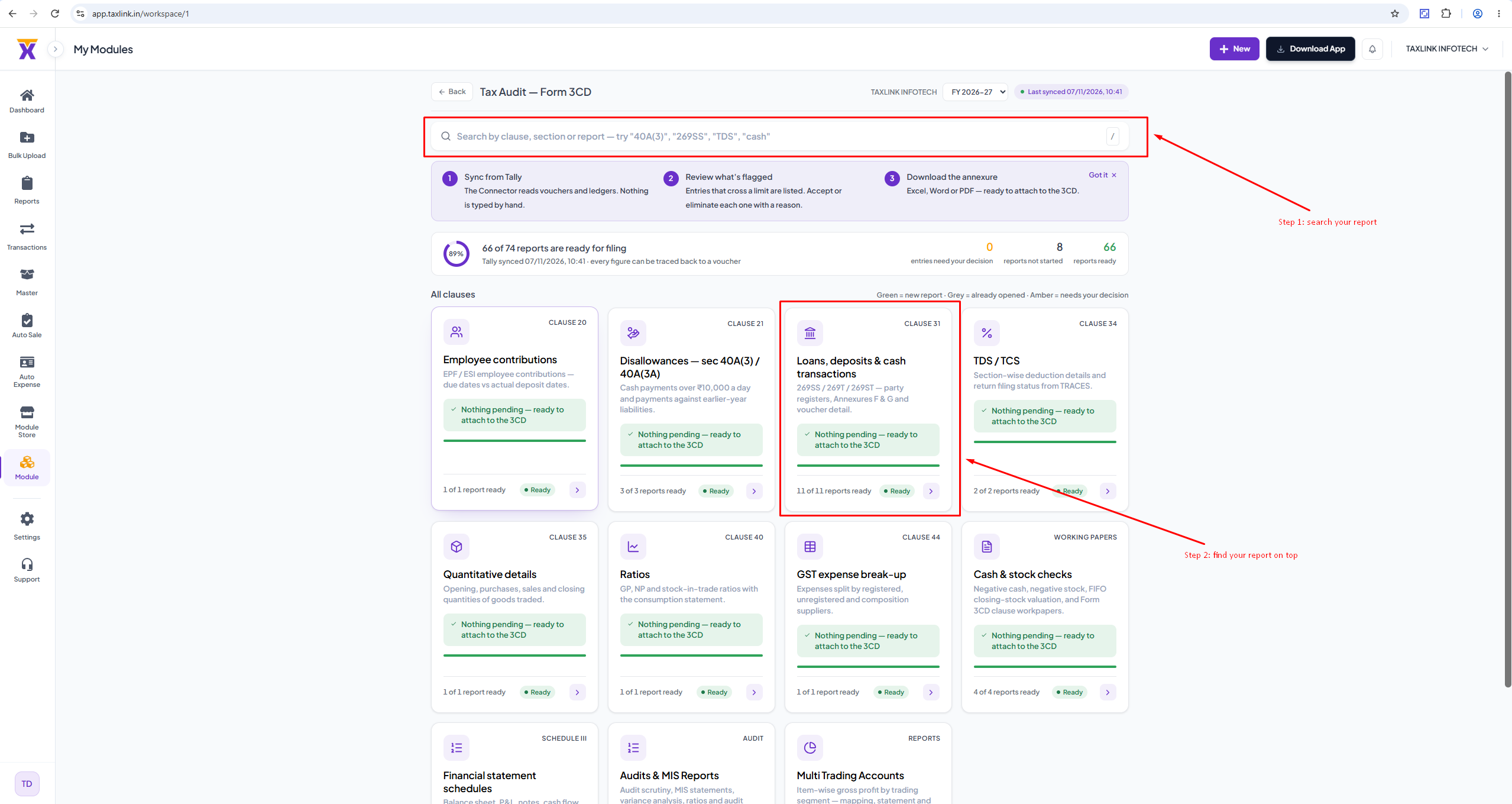
Choose the report you want to view from the Module list.
- Scroll or search the Module list
- Click the report name you need
- The report loads on screen with filters for date, company, or period where applicable
Click the screenshot to open it full size. Step 4: Download Excel, PDF, or Doc
Use the download buttons on the report screen to save a copy of the data.
- Look for the download or export actions at the top of the report
- Click "Excel" to download a spreadsheet (.xlsx)
- Click "PDF" to download a PDF file
- Click "Doc" to download a Word document
- Your browser saves the file, or asks where to save it
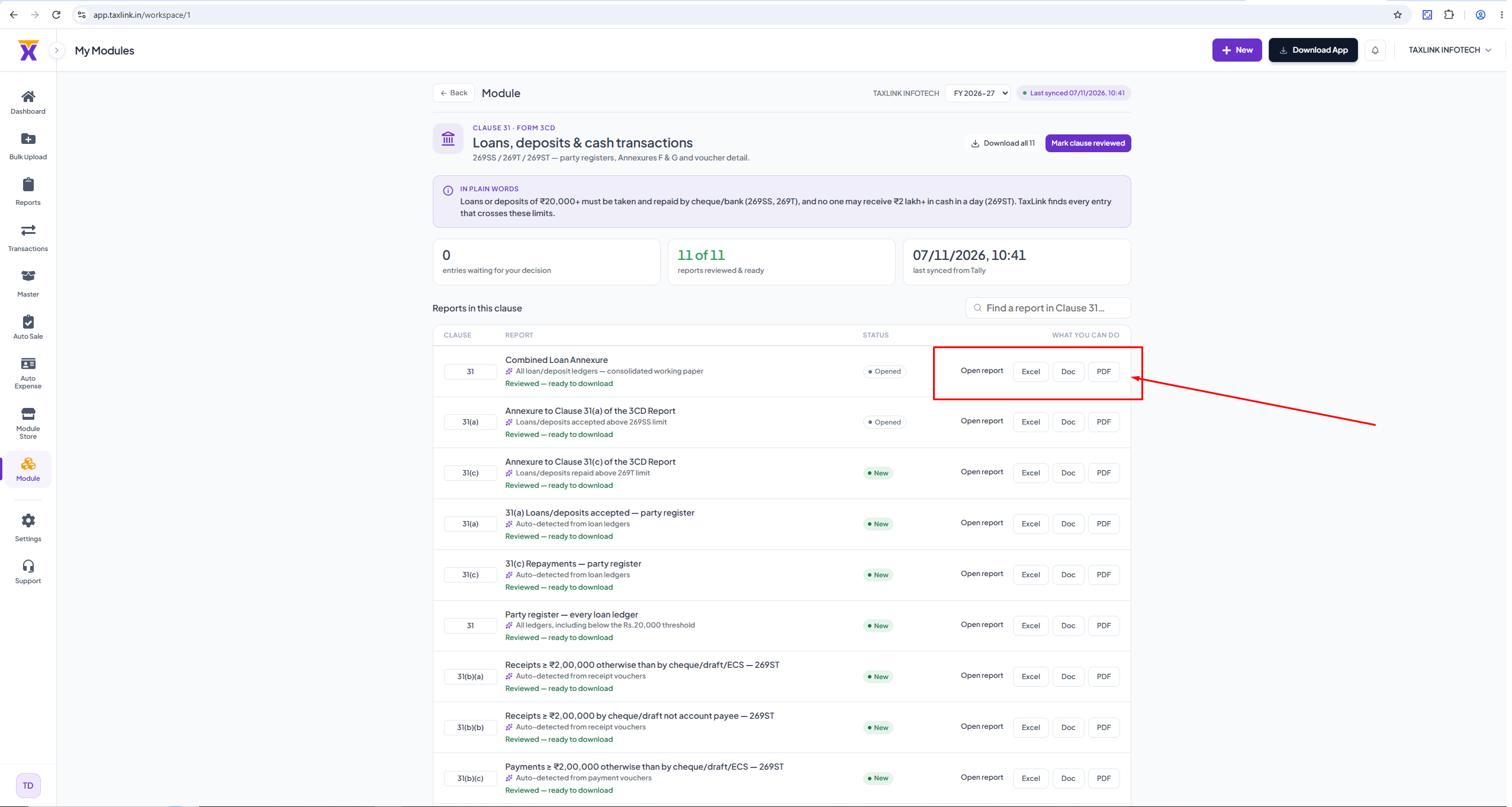
Click the screenshot to open it full size. Available formats can vary slightly by report. If a button is disabled, set the required filters (such as date range) and run the report again.
Tips
Set filters first
Choose company, period, and any other filters before downloading so the file matches what you need.
Same report, different formats
Use Excel for analysis, PDF for sharing or printing, and Doc when you need to edit the layout in Word.
Still stuck?
Email support@taxlink.in or call +91 84848 48833 (Monday to Saturday, 9 AM – 6 PM IST).